
















The Complete Guide to Google PageSpeed Insights: Boost Your Website Performance in 2025
Website speed has become one of the most critical factors for online success. With users expecting lightning-fast loading times and search engines prioritizing page speed in their rankings, understanding and optimizing your website's performance is no longer optional, it's essential. This comprehensive guide will walk you through everything you need to know about Google PageSpeed Insights, from basic concepts to advanced optimization techniques.
What is Google PageSpeed Insights?
Google PageSpeed Insights is a free web performance analysis tool developed by Google that evaluates your website's loading speed and provides actionable recommendations for improvement. This powerful tool analyzes your web pages on both mobile and desktop devices, offering insights based on real-world data from the Chrome User Experience Report (CrUX) and lab data from Lighthouse.
The tool serves as your website's performance report card, measuring various metrics that directly impact user experience and search engine rankings. By providing both field data (real user experiences) and lab data (controlled environment testing), PageSpeed Insights gives you a comprehensive view of how your website performs in the wild.
Why Website Speed Matters More Than Ever
Before diving into the technical aspects, it's crucial to understand why website speed is so important:
User Experience Impact: Studies show that 53% of mobile users abandon sites that take longer than 3 seconds to load. Even a one-second delay can result in a 7% reduction in conversions. Fast-loading websites create positive user experiences, leading to higher engagement, lower bounce rates, and increased customer satisfaction.
SEO and Search Rankings: Google has officially made page speed a ranking factor for both desktop and mobile searches. The Core Web Vitals update made performance metrics even more crucial for search visibility. Websites that load quickly are more likely to rank higher in search results, driving more organic traffic.
Business Revenue: Amazon found that every 100ms of latency cost them 1% in sales. For e-commerce sites, faster loading times directly translate to higher conversion rates and increased revenue. The business case for speed optimization is clear and measurable.
Understanding Core Web Vitals
Core Web Vitals are three key metrics that Google considers essential for measuring user experience:
Largest Contentful Paint (LCP)
LCP measures loading performance by tracking when the largest visible element on the page becomes fully rendered. This metric focuses on perceived loading speed from the user's perspective. Good LCP scores are 2.5 seconds or less, while scores above 4.0 seconds are considered poor.
The largest contentful element is typically an image, video, or block of text. Common causes of poor LCP include slow server response times, render-blocking resources, slow resource loading, and client-side rendering issues.
First Input Delay (FID)
FID measures interactivity by calculating the time from when a user first interacts with your page to when the browser can respond to that interaction. This metric captures the frustration users feel when they try to interact with an unresponsive page. Good FID scores are less than 100 milliseconds.
FID issues often stem from heavy JavaScript execution, large bundle sizes, and long-running tasks that block the main thread. Optimizing JavaScript parsing, execution, and delivery is crucial for improving FID scores.
Cumulative Layout Shift (CLS)
CLS measures visual stability by quantifying how much visible content shifts during page loading. Unexpected layout shifts can be incredibly frustrating for users, especially when they cause misclicks or interrupt reading. Good CLS scores are less than 0.1.
Common causes of layout shifts include images without dimensions, ads or embeds that inject content, and dynamically loaded fonts. Preventing these shifts requires careful attention to element sizing and loading sequences.
How to Use Google PageSpeed Insights
Getting started with PageSpeed Insights is straightforward. Simply visit https://pagespeed.web.dev/ and enter your website URL. The tool will analyze your page and provide separate scores for mobile and desktop performance.
Understanding Your Performance Score
The performance score is calculated on a scale of 0-100, with different color codes indicating performance levels:
- Green (90-100): Excellent performance
- Orange (50-89): Needs improvement
- Red (0-49): Poor performance
This score is based on six key metrics: First Contentful Paint, Largest Contentful Paint, First Input Delay, Cumulative Layout Shift, Speed Index, and Total Blocking Time. Each metric is weighted differently, with Core Web Vitals carrying the most significance.
Interpreting Field Data vs Lab Data
Field data represents real user experiences collected from Chrome users who have visited your page. This data is incredibly valuable because it reflects actual performance in various conditions, devices, and network speeds. However, field data is only available for pages with sufficient traffic.
Lab data, powered by Lighthouse, provides controlled testing in a standardized environment. While lab data might not perfectly reflect real-world performance, it's excellent for identifying specific issues and measuring the impact of optimizations during development.
Testing Web Pages Directly from Chrome Console
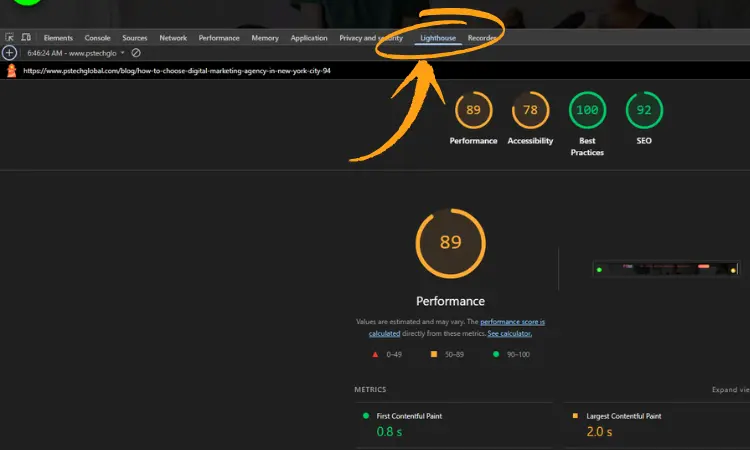
One of the most powerful features for developers is the ability to test website performance directly from Chrome's Developer Tools, as shown in the image you provided. This built-in functionality gives you immediate access to performance insights without leaving your browser.
Accessing Performance Tools in Chrome
To access these tools, right-click on any webpage and select "Inspect" or press F12. Navigate to the "Lighthouse" tab in the Developer Tools panel. From here, you can run comprehensive performance audits similar to those provided by PageSpeed Insights.
Running Performance Audits
In the Lighthouse tab, you can configure your audit to focus on performance, accessibility, best practices, or SEO. Select "Performance" and choose between mobile or desktop simulation. Click "Generate report" to run the audit.
The results will show you the same Core Web Vitals metrics and performance score you'd see on the PageSpeed Insights website. However, running tests locally allows for faster iteration and testing of changes before deploying them to production.
Understanding the Metrics Display
As shown in the image, the performance metrics are displayed in circular indicators with color-coded scores. The main performance score of 89 indicates good performance, while individual metrics like First Contentful Paint (0.8s) and Largest Contentful Paint (2.0s) provide specific timing information.
The detailed breakdown shows Total Blocking Time and Cumulative Layout Shift, giving you a complete picture of your page's performance characteristics. This granular data helps identify specific areas for improvement.
Key Performance Metrics Explained
First Contentful Paint (FCP)
FCP measures when the first piece of content is rendered on the screen. This metric is crucial because it indicates when users first see that something is happening on your page. Good FCP scores are under 1.8 seconds.
Improving FCP involves optimizing your critical rendering path, minimizing render-blocking resources, and ensuring essential content loads quickly. Techniques include inlining critical CSS, optimizing fonts, and reducing server response times.
Speed Index
Speed Index measures how quickly content is visually displayed during page load. Unlike other metrics that focus on specific moments, Speed Index provides a more holistic view of loading performance. Lower scores indicate better performance.
This metric is particularly important for user perception, as it captures the visual completeness of the page over time. Optimizing images, reducing JavaScript execution time, and improving resource loading can significantly improve Speed Index scores.
Total Blocking Time (TBT)
TBT measures the total time that the main thread is blocked, preventing user interactions. This metric is closely related to FID and helps identify JavaScript performance issues. Good TBT scores are under 200 milliseconds.
Reducing TBT involves optimizing JavaScript execution, code splitting, and removing unused code. Tools like webpack bundle analyzer can help identify large dependencies that might be blocking the main thread.
Common Performance Issues and Solutions
Optimizing Images
Images are often the largest contributors to page weight and loading times. Implementing proper image optimization strategies can dramatically improve performance:
Format Selection: Use modern formats like WebP or AVIF when supported, falling back to JPEG or PNG for compatibility. These formats provide better compression without sacrificing quality.
Responsive Images: Implement responsive images using the srcset attribute to serve appropriately sized images for different devices and screen densities.
Lazy Loading: Use native lazy loading or JavaScript libraries to defer loading of below-the-fold images until they're needed.
Compression: Compress images without losing visual quality using tools like TinyPNG or ImageOptim.
JavaScript Optimization
JavaScript often causes the most significant performance issues on modern websites:
Code Splitting: Break large JavaScript bundles into smaller chunks that can be loaded on demand. This reduces initial bundle size and improves loading times.
Tree Shaking: Remove unused JavaScript code from your bundles using tools like webpack or Rollup.
Minification: Compress JavaScript files by removing whitespace, comments, and unnecessary characters.
Critical JavaScript: Identify and prioritize JavaScript that's essential for initial page rendering, deferring non-critical scripts.
CSS Optimization
CSS can significantly impact rendering performance:
Critical CSS: Inline essential CSS required for above-the-fold content and defer non-critical stylesheets.
Unused CSS: Remove unused CSS rules using tools like PurgeCSS or UnCSS.
CSS Minification: Compress CSS files to reduce file sizes.
Font Loading: Optimize web font loading using font-display: swap and preloading techniques.
Server-Side Optimization
Server performance directly impacts all other metrics:
Server Response Time: Optimize your server configuration, database queries, and caching strategies to reduce Time to First Byte (TTFB).
Content Delivery Network (CDN): Use a CDN to serve static assets from servers closer to your users.
Gzip Compression: Enable gzip compression on your server to reduce file transfer sizes.
HTTP/2: Implement HTTP/2 to improve resource loading efficiency.
Advanced Optimization Techniques
Service Workers and Caching
Implement service workers to cache resources and provide offline functionality. This can dramatically improve repeat visit performance and perceived speed.
Resource Hints
Use resource hints like preload, prefetch, and preconnect to help browsers optimize resource loading:
<link rel="preload" href="critical.css" as="style">
<link rel="prefetch" href="next-page.html">
<link rel="preconnect" href="https://fonts.googleapis.com">
Third-Party Script Optimization
Third-party scripts can significantly impact performance:
Script Loading: Use async or defer attributes to prevent render-blocking.
Third-Party Facades: Implement facades for heavy third-party widgets that only load when users interact with them.
Performance Budgets: Set limits on third-party script impact and monitor compliance.
Mobile Performance Considerations
Mobile performance requires special attention due to limited processing power and network constraints:
Touch-Friendly Design: Ensure interactive elements are appropriately sized for touch interfaces.
Network Awareness: Optimize for slower mobile networks by reducing resource sizes and implementing progressive loading.
Battery Efficiency: Minimize JavaScript execution and animations that drain battery life.
Monitoring and Continuous Improvement
Performance optimization is an ongoing process that requires regular monitoring:
Setting Up Monitoring
Implement real user monitoring (RUM) to track performance metrics from actual users. Tools like Google Analytics, New Relic, or custom solutions can provide ongoing insights.
Performance Budgets
Establish performance budgets for key metrics and integrate them into your development workflow. This helps prevent performance regressions.
Regular Audits
Schedule regular performance audits to identify new issues and opportunities for improvement. As your website evolves, new performance challenges will emerge.
Tools and Resources for Performance Optimization
Testing Tools
- Google PageSpeed Insights: Primary tool for performance analysis
- WebPageTest: Detailed performance testing with filmstrip view
- GTmetrix: Comprehensive performance analysis with recommendations
- Chrome DevTools: Built-in browser performance profiling
Optimization Tools
- webpack Bundle Analyzer: Visualize JavaScript bundle sizes
- Lighthouse CI: Automated performance testing in CI/CD pipelines
- ImageOptim: Image compression and optimization
- Critical: Extract and inline critical CSS
Monitoring Solutions
- Google Analytics: Core Web Vitals reporting
- New Relic: Application performance monitoring
- Pingdom: Uptime and performance monitoring
- DataDog: Infrastructure and application monitoring
Best Practices for Long-Term Success
Development Workflow Integration
Integrate performance testing into your development workflow. Use tools like Lighthouse CI to catch performance regressions before they reach production.
Team Education
Ensure your entire team understands the importance of performance and knows how to identify and fix common issues.
Performance Culture
Foster a culture that prioritizes performance alongside functionality and design. Make performance metrics visible and celebrate improvements.
Conclusion
Google PageSpeed Insights is an invaluable tool for understanding and improving your website's performance. By focusing on Core Web Vitals, implementing optimization techniques, and maintaining a performance-first mindset, you can create faster, more engaging websites that rank better in search engines and provide superior user experiences.
Remember that performance optimization is not a one-time task but an ongoing process. Regular monitoring, testing, and optimization will ensure your website continues to perform well as it grows and evolves. Start with the biggest impact optimizations, measure your results, and gradually implement more advanced techniques.
The investment in website performance pays dividends in improved user satisfaction, higher search rankings, and increased business success. With the tools and techniques outlined in this guide, you're well-equipped to tackle any performance challenge and create lightning-fast web experiences that users will love.
Whether you're using the online PageSpeed Insights tool or testing directly from Chrome's Developer Tools, the key is to understand what the metrics mean and take action based on the insights provided. Your users and your business will thank you for the improved performance.
Frequently Asked Questions